Labels

Showing posts with label linux. Show all posts

Monday, 19 August 2019

How do library function is faster than System call?

Abstract:
In this article, we are going to see what is a library function and what is a system call. Also we go through the basic implementation for system call. Summary section explains about the conclusion about the summary.

What is a Library Function?

Library functions in c Language are inbuilt functions, which are grouped together and placed in a common place called library. Each library function in c performs specific operation. We can make use of these library functions to get the predefined output, instead of writing our own code to get those outputs. These library functions are created by the persons who designed and created C compilers. All C standard library functions are declared in many header files and which are saved as file_name.h. 

What is a system call?

At a high level system calls are "Services" offered by the kernel to user applications and they resemble library APIs in that they are described as a function call with a name, parameters and return value.
../_images/ditaa-48e96bb39e921ced06e8c3fe0d79112d7dd0c62b.png 
However, on a close look, we can see that system calls are actually not function calls, but specific assembly instructions (architecture and kernel specific) that do the following.
  • setup information to identify the system call and its parameters
  • trigger a kernel mode switch
  • retrieve the result of the system call
 In Linux, system calls are identified by numbers and the parameters for system calls are machine word sized (32 or 64 bit). There can be a maximum of 6 system call parameters. Both the system call number and the parameters are stored in certain registers.
 
In Summary, this is what happens during a system call:
  • The application is setting up the system call number and parameters and it issues a trap instruction
  • The execution mode switches from user to kernel; the CPU switches to a kernel stack; the user stack and the return address to user space is saved on the kernel stack
  • The kernel entry point saves registers on the kernel stack
  • The system call dispatcher identifies the system call function and runs it
  • The user space registers are stored and execution is switched back to user (eg: calling IRET)
  • The user space application resumes

Case study:

Library functions run in user space; in that aspect, they are no different than your own functions, They are executed by a simple far jump to the function entry point and there's no involvement of the OS.
 
Other hand, System calls run in kernel space, And system call is not a simple far jump. It requires generating a software interrupt , which will switch context from user process to kernel routine and then switch back. The context switching is what makes the syscall slower than common library/User function call.

Now, let's take a brief look at system library. In general, system libraries that are installed with the system, these may or may not make syscalls.  As per the process point of view, there is no difference in making/calling a system call whether a function is provided by the user binary or library or (shared) library installed with system; These are just libraries loaded into memory and linked to the user program. The addresses are resolved upon library loading.

Conclusion:

There is no difference in making system call from your code or making it transitively via library function. The library function is always faster than the system call, as the system call involves context switching and takes more CPU cycles (More Instructions).
 

Wednesday, 3 October 2018

What is RSS and RPS? How it improves throughput?


Introduction:

Lets cover some basic concepts, before we dig into RSS and RPS
Network Interface Card: A network interface controller (NIC) (also known as a network interface card, network adapter) is an electronic device that connects a computer to a computer network/ Modern NIC usually comes up with speed of 1-10Gbps. #Find your NIC speed [root@machine1 ~]# ethtool eth0 | grep Speed Speed: 1000Mb/s
Hardware Interrupt: Its a signal from a hardware device that is sent to the CPU when the device needs to perform an input or output operation.  In other words, the device "interrupts" the CPU to tell it its attention. Once CPU is interrupted, it stops what its doing, and execute an interrupt service routine associated with that device.
Soft IRQ: This interrupt request is like hardware interrupt request but not as critical. Basically when packets arrive at NIC, an interrupt is generated to CPU so that it can stop whatever it doing, and acknowledge to NIC saying I am ready to serve you. This means taking data from NIC, copying it to kernel buffer, doing TCP/ IP processing and provide data to application stack. All this when done by interrupt request, could cause lot of latency on NIC and starvation of other devices for CPU. For this reason, the interrupt work is diving into 2 things. One where CPU will just acknowledge NIC saying I got it. At this point, the hardware interrupt will be completed and NIC will return back to what it was doing. Rest of the work of moving data up the TCP/ IP stack is put as backlog under CPU's poll queue as SoftIRQ.
Socket Buffer Pool: Its a region of RAM(kernel memory) allocated during boot up process to hold the packet data.
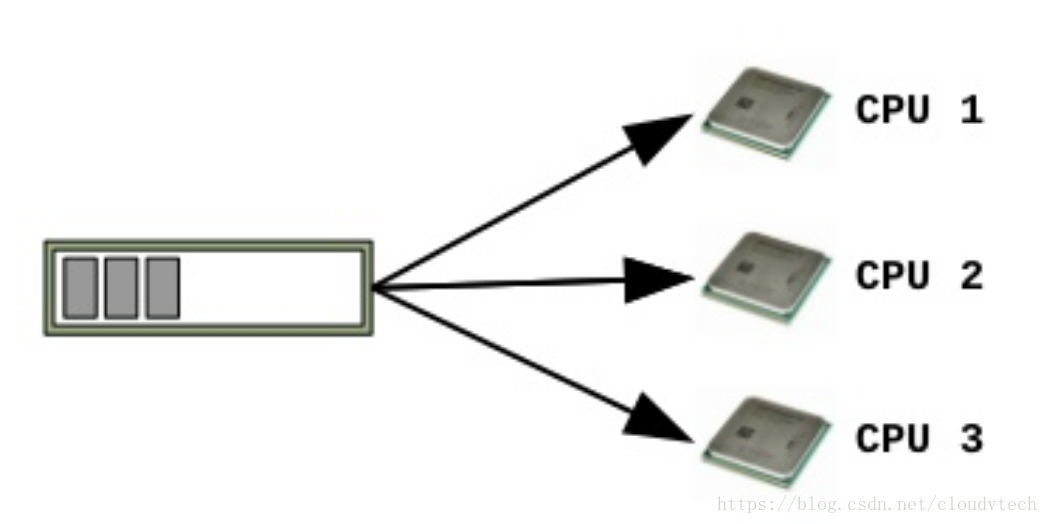
Rx Queues: This queue hold the socket descriptors for actual packets in socket buffer pool. These are mostly implemented as circular queues. When a packet first arrives at the network card, the device add the packet descriptor(reference) in matching Rx queue and its data into socket buffer. In modern NICs, there could be multiple queues possible which is also called as RSS (concept to distribute packet processing load across multiple processors).

set of complementary techniques in the Linux networking stack to increase parallelism and 
improve performance for multi-processor systems.

The following technologies are described:

  RSS: Receive Side Scaling
  RPS: Receive Packet Steering
  RFS: Receive Flow Steering
  Accelerated Receive Flow Steering
  XPS: Transmit Packet Steering 
 
 
In this article, we mainly focus on RSS and RPS techniques.


Receive-Side Scaling (RSS)

Receive-Side Scaling (RSS), also known as multi-queue receive, distributes network receive processing across several hardware-based receive queues, allowing inbound network traffic to be processed by multiple CPUs. RSS can be used to relieve bottlenecks in receive interrupt processing caused by overloading a single CPU, and to reduce network latency.
To determine whether your network interface card supports RSS, check whether multiple interrupt request queues are associated with the interface in /proc/interrupts. For example, if you are interested in the p1p1 interface: 
# egrep 'CPU|p1p1' /proc/interrupts
      CPU0    CPU1    CPU2    CPU3    CPU4    CPU5
89:   40187       0       0       0       0       0   IR-PCI-MSI-edge   p1p1-0
90:       0     790       0       0       0       0   IR-PCI-MSI-edge   p1p1-1
91:       0       0     959       0       0       0   IR-PCI-MSI-edge   p1p1-2
92:       0       0       0    3310       0       0   IR-PCI-MSI-edge   p1p1-3
93:       0       0       0       0     622       0   IR-PCI-MSI-edge   p1p1-4
94:       0       0       0       0       0    2475   IR-PCI-MSI-edge   p1p1-5
 
The preceding output shows that the NIC driver created 6 receive queues for the p1p1 interface (p1p1-0 through p1p1-5). It also shows how many interrupts were processed by each queue, and which CPU serviced the interrupt. In this case, there are 6 queues because by default, this particular NIC driver creates one queue per CPU, and this system has 6 CPUs. This is a fairly common pattern amongst NIC drivers.
Alternatively, you can check the output of ls -1 /sys/devices/*/*/device_pci_address/msi_irqs after the network driver is loaded. For example, if you are interested in a device with a PCI address of 0000:01:00.0, you can list the interrupt request queues of that device with the following command:
# ls -1 /sys/devices/*/*/0000:01:00.0/msi_irqs
101
102
103
104
105
106
107
108
109
RSS is enabled by default. The number of queues (or the CPUs that should process network activity) for RSS are configured in the appropriate network device driver. For the bnx2x driver, it is configured in num_queues. For the sfc driver, it is configured in the rss_cpus parameter. Regardless, it is typically configured in /sys/class/net/device/queues/rx-queue/, where device is the name of the network device (such as eth1) and rx-queue is the name of the appropriate receive queue.
When configuring RSS, Red Hat recommends limiting the number of queues to one per physical CPU core. Hyper-threads are often represented as separate cores in analysis tools, but configuring queues for all cores including logical cores such as hyper-threads has not proven beneficial to network performance.
When enabled, RSS distributes network processing equally between available CPUs based on the amount of processing each CPU has queued. However, you can use the ethtool --show-rxfh-indir and --set-rxfh-indir parameters to modify how network activity is distributed, and weight certain types of network activity as more important than others.


#Check Driver version
[root@machine1 ~]# ethtool -i eth1
driver: igb
version: 4.2.16
firmware-version: 2.5.5
#CPU Affinity before RSS for eth1 Rx queue:
[root@machine1 ~]$ cat /proc/interrupts | grep eth1-TxRx | awk '{print $1}' | cut -d":" -f 1 | xargs -n 1 -I {} cat /proc/irq/{}/smp_affinity
000100
#List all queues before RSS
[root@machine1 ~]# ls -l /sys/class/net/eth1/queues
total 0
drwxr-xr-x 2 root root 0 Sep 10 18:00 rx-0
drwxr-xr-x 2 root root 0 Oct 10 20:48 tx-0

#Assign number of queues close to CPU cores (http://downloadmirror.intel.com/13663/eng/README.txt
[root@machine1 ~]# echo "options igb RSS=0,0" >>/etc/modprobe.d/igb.conf
#Reload igb driver and restart network
[root@machine1 ~]# /sbin/service network stop; sleep 2; /sbin/rmmod igb; sleep 2; /sbin/modprobe igb; sleep 2; /sbin/service network start;
Shutting down interface eth0:                              [  OK  ]
Shutting down interface eth1:                              [  OK  ]
Shutting down loopback interface:                          [  OK  ]
Bringing up loopback interface:                            [  OK  ]
Bringing up interface eth0: 
Determining IP information for eth0... done.
                                                           [  OK  ]
Bringing up interface eth1:                                [  OK  ]

#List all queues after RSS
[root@machine1 ~]# ls -l /sys/class/net/eth1/queues
total 0
drwxr-xr-x 2 root root 0 Oct 11 00:34 rx-0
drwxr-xr-x 2 root root 0 Oct 11 00:34 rx-1
drwxr-xr-x 2 root root 0 Oct 11 00:34 rx-2
drwxr-xr-x 2 root root 0 Oct 11 00:34 rx-3
drwxr-xr-x 2 root root 0 Oct 11 00:34 tx-0
drwxr-xr-x 2 root root 0 Oct 11 00:34 tx-1
drwxr-xr-x 2 root root 0 Oct 11 00:34 tx-2
drwxr-xr-x 2 root root 0 Oct 11 00:34 tx-3

#CPU Affinity after RSS
[root@machine1 ~]# cat /proc/interrupts | grep eth1-TxRx | awk '{print $1}' | cut -d":" -f 1 | xargs -n 1 -I {} cat /proc/irq/{}/smp_affinity
000400
000008
000002
000001

Receive Packet Steering (RPS)

Receive Packet Steering (RPS) is similar to RSS in that it is used to direct packets to specific CPUs for processing. However, RPS is implemented at the software level, and helps to prevent the hardware queue of a single network interface card from becoming a bottleneck in network traffic.
RPS has several advantages over hardware-based RSS:
  • RPS can be used with any network interface card.
  • It is easy to add software filters to RPS to deal with new protocols.
  • RPS does not increase the hardware interrupt rate of the network device. However, it does introduce inter-processor interrupts.
RPS is configured per network device and receive queue, in the /sys/class/net/device/queues/rx-queue/rps_cpus file, where device is the name of the network device (such as eth0) and rx-queue is the name of the appropriate receive queue (such as rx-0).
The default value of the rps_cpus file is zero. This disables RPS, so the CPU that handles the network interrupt also processes the packet.
To enable RPS, configure the appropriate rps_cpus file with the CPUs that should process packets from the specified network device and receive queue.
The rps_cpus files use comma-delimited CPU bitmaps. Therefore, to allow a CPU to handle interrupts for the receive queue on an interface, set the value of their positions in the bitmap to 1. For example, to handle interrupts with CPUs 0, 1, 2, and 3, set the value of rps_cpus to 00001111 (1+2+4+8), or f (the hexadecimal value for 15).
For network devices with single transmit queues, best performance can be achieved by configuring RPS to use CPUs in the same memory domain. On non-NUMA systems, this means that all available CPUs can be used. If the network interrupt rate is extremely high, excluding the CPU that handles network interrupts may also improve performance.
For network devices with multiple queues, there is typically no benefit to configuring both RPS and RSS, as RSS is configured to map a CPU to each receive queue by default. However, RPS may still be beneficial if there are fewer hardware queues than CPUs, and RPS is configured to use CPUs in the same memory domain. 
Below commands shows how to alter RPS values to distribute load across multiple CPU cores. Optimal settings for the CPU mask depend on architecture, network traffic, current CPU load, etc.
#There are only 2 queues present (1 rx queue and 1 tx queue)
[root@machine1 ~]# ls -l /sys/class/net/eth1/queues/
total 0
drwxr-xr-x 2 root root 0 Oct 14 19:00 rx-0
drwxr-xr-x 2 root root 0 Oct 15 00:15 tx-0
#Packet processing is done by single core CPU1
[root@machine1 ~]# cat /sys/class/net/eth1/queues/rx-0/rps_cpus
0001
#Distribute packet processing load to 15 CPU cores (CPU1-15) except CPU0
[root@machine1 ~]# echo fffe > /sys/class/net/eth1/queues/rx-0/rps_cpus
fffe
#Confirm output
[root@machine1 ~]# cat /sys/class/net/eth1/queues/rx-0/rps_cpus
fffe
Run following command to see output of how softirqs are being distributed across processors for receiving traffic.
[root@machine1 ~]# watch -d "cat /proc/softirqs | grep NET_RX"
 

Packet Flow:

1) Packet arrival at NIC: NIC copies the data to socket buffer through an onboard DMA controller, and raises a hardware interrupt. Some NIC types also have a local memory which is mapped to host memory.

2) Copy data to socket buffer: Linux kernel maintains a pool of socket buffers. The socket buffer is the structure used to address and manage a packet over the entire time this packet is being processed in the kernel. When NIC recieves data, it creates a socket buffer structure and stores the payload data address in the variables of this structure. At each layer of TCP/ IP stack, headers are appended to this payload. The payload is copied only twice: once when it transits from the user address space to the kernel address space, and a second time when the packet data is passed to the network adapter.

3)Hardware interrupt & softIRQ: After copying data to socket buffer, NIC raises a hardware interrupt to indicate that an action needs to be taken by CPU on incoming packet. The processor's interrupt service routine then reads the Interrupt Status Register to determine what type of interrupt occurred and what action needs to be taken. It acknowledges the NIC interrupt. A hardware interrupt should be quick so the system isn't held up in interrupt handling. With the kernel now aware that a packet is available for processing on the receive queue the hardware interrupt is done, the hardware signal is un-asserted, and everything is ready for the next stage of packet processing. The next stage of packet processing is put in CPU's backlog queue as softIRQ so whenever it get chance, it will start processing and move the packet upto TCP/ IP stack.In case of monoqueues, the hardware interrupt generated is from single queue and same CPU is also responisble for processing softIRQ. If RPS is enabled on mono queue, the incoming packets are hashed, load is distributed across multiple CPU processors.In case of multi queues (RSS), hardware interrupt will go to matching CPU processor, and that processor will also be responsible for softIRQ processing.

Bibliography:

https://www.kernel.org/doc/Documentation/networking/scaling.txt


Sunday, 17 December 2017

GDB tutorial. What is gdb and how to run commands in gdb?

GDB Tutorial

GDB, short for GNU Debugger, is the most popular debugger for UNIX systems to debug C and C++ programs.

A debugger is a program that runs other programs, allowing the user to exercise control over these programs, and to examine variables when problems arise.
GNU Debugger, which is also called gdb, is the most popular debugger for UNIX systems to debug C and C++ programs.
GNU Debugger helps you in getting information about the following:
  • If a core dump happened, then what statement or expression did the program crash on?
  • If an error occurs while executing a function, what line of the program contains the call to that function, and what are the parameters?
  • What are the values of program variables at a particular point during execution of the program?
  • What is the result of a particular expression in a program?

How GDB Debugs?

GDB allows you to run the program up to a certain point, then stop and print out the values of certain variables at that point, or step through the program one line at a time and print out the values of each variable after executing each line.
GDB uses a simple command line interface.

Points to Note

Even though GDB can help you in finding out memory leakage related bugs, but it is not a tool to detect memory leakages.

GDB cannot be used for programs that compile with errors and it does not help in fixing those errors.

GDB Commands:

GDB offers a big list of commands, however the following commands are the ones used most frequently:
  • b main - Puts a breakpoint at the beginning of the program
  • b - Puts a breakpoint at the current line
  • b N - Puts a breakpoint at line N
  • b +N - Puts a breakpoint N lines down from the current line
  • b fn - Puts a breakpoint at the beginning of function "fn"
  • d N - Deletes breakpoint number N
  • info break - list breakpoints
  • r - Runs the program until a breakpoint or error
  • c - Continues running the program until the next breakpoint or error
  • f - Runs until the current function is finished
  • s - Runs the next line of the program
  • s N - Runs the next N lines of the program
  • n - Like s, but it does not step into functions
  • u N - Runs until you get N lines in front of the current line
  • p var - Prints the current value of the variable "var"
  • bt - Prints a stack trace
  • u - Goes up a level in the stack
  • d - Goes down a level in the stack
  • q - Quits gdb

Getting Started: Starting and Stopping

  • gcc -g myprogram.c
    • Compiles myprogram.c with the debugging option (-g). You still get an a.out, but it contains debugging information that lets you use variables and function names inside GDB, rather than raw memory locations (not fun).
  • gdb a.out
    • Opens GDB with file a.out, but does not run the program. You’ll see a prompt (gdb) - all examples are from this prompt.
  • r
  • r arg1 arg2
  • r < file1
    • Three ways to run “a.out”, loaded previously. You can run it directly (r), pass arguments (r arg1 arg2), or feed in a file. You will usually set breakpoints before running.
  • help
  • h breakpoints
    • Lists help topics (help) or gets help on a specific topic (h breakpoints). GDB is well-documented.
  • q - Quit GDB

Stepping through Code

Stepping lets you trace the path of your program, and zero in on the code that is crashing or returning invalid input.
  • l
  • l 50
  • l myfunction
    • Lists 10 lines of source code for current line (l), a specific line (l 50), or for a function (l myfunction).
  • next
    • Runs the program until next line, then pauses. If the current line is a function, it executes the entire function, then pauses. next is good for walking through your code quickly.
  • step
    • Runs the next instruction, not line. If the current instruction is setting a variable, it is the same as next. If it’s a function, it will jump into the function, execute the first statement, then pause. step is good for diving into the details of your code.
  • finish
    • Finishes executing the current function, then pause (also called step out). Useful if you accidentally stepped into a function.

Breakpoints or Watchpoints

Breakpoints play an important role in debugging. They pause (break) a program when it reaches a certain point. You can examine and change variables and resume execution. This is helpful when some input failure occurs, or inputs are to be tested.
  • break 45
  • break myfunction
    • Sets a breakpoint at line 45, or at myfunction. The program will pause when it reaches the breakpoint.
  • watch x == 3
    • Sets a watchpoint, which pauses the program when a condition changes (when x == 3 changes). Watchpoints are great for certain inputs (myPtr != NULL) without having to break on every function call.
  • continue
    • Resumes execution after being paused by a breakpoint/watchpoint. The program will continue until it hits the next breakpoint/watchpoint.
  • delete N
    • Deletes breakpoint N (breakpoints are numbered when created).

Setting Variables

Viewing and changing variables at runtime is a critical part of debugging. Try providing invalid inputs to functions or running other test cases to find the root cause of problems. Typically, you will view/set variables when the program is paused.
  • print x
    • Prints current value of variable x. Being able to use the original variable names is why the (-g) flag is needed; programs compiled regularly have this information removed.
  • set x = 3
  • set x = y
    • Sets x to a set value (3) or to another variable (y)
  • call myfunction()
  • call myotherfunction(x)
  • call strlen(mystring)
    • Calls user-defined or system functions. This is extremely useful, but beware of calling buggy functions.
  • display x
    • Constantly displays the value of variable x, which is shown after every step or pause. Useful if you are constantly checking for a certain value.
  • undisplay x
    • Removes the constant display of a variable displayed by display command.

Backtrace and Changing Frames

A stack is a list of the current function calls - it shows you where you are in the program. A frame stores the details of a single function call, such as the arguments.
  • bt
    • Backtraces or prints the current function stack to show where you are in the current program. If main calls function a(), which calls b(), which calls c(), the backtrace is
  • c <= current location 
    b 
    a 
    main 
    
  • up
  • down
    • Move to the next frame up or down in the function stack. If you are in c, you can move to b or a to examine local variables.
  • return
    • Returns from current function.

Handling Signals

Signals are messages thrown after certain events, such as a timer or error. GDB may pause when it encounters a signal; you may wish to ignore them instead.
  • handle [signalname] [action]
  • handle SIGUSR1 nostop
  • handle SIGUSR1 noprint
  • handle SIGUSR1 ignore
    • Instruct GDB to ignore a certain signal (SIGUSR1) when it occurs. There are varying levels of ignoring.

To debug a program 'my_program' that has crashed and produced a core file named 'core', type the following at the command line:
gdb my_program core 
As this is mostly equivalent to starting gdb and typing the 'r' command, all of the commands above could now be used to debug the file.

The text user interface

GDB TUI
GDB features a text user interface for code, disassembler and registers. For instance:
  • Ctrl-x 1 will show the code pane
  • Ctrl-x a will hide the TUI panes
None of the GUI interfaces to gdb (Qt Creator stands out for being intuitive and easy to use) can offer access to all of the gdb functionality.

References:

https://en.wikibooks.org/wiki/Linux_Applications_Debugging_Techniques


Wednesday, 24 May 2017

How to change default runlevel in ubuntu 16.04? How to find default runlevel?

How to find default Runlevel?

The conventional way to check the runlevel in linux distos using runlevel command.

$ runlevel
N 5
The output shows/explains about two things 
1. N -> Indicates the previous runlevel used after reboot.
2. 5 -> Runlevel number 

How to check runlevel in ubuntu 16.04?

Ubuntu 16.04 uses systemd as a init daemon program. so lets have a brief understanding about systemd.

What is Systemd?

systemd is a replacement to the older traditional "System V init" system . systemd stands for system daemon. systemd was designed to allow for better handling of dependencies and have the ability to handle more work in parallel at system startup. systemd supports snapshotting of your system and the restoring of your systems state, keeps track of processes stored in what is known as a "cgroup" as opposed to the conventional "PID" method. systemd is now shipping by default with many popular Linux distributions such as Fedora, Mandriva, Mageia, Arch Linux, CentOS 7, RHEL 7.0 (Red Hat Enterprise Linux) and Oracle Linux 7.0. systemd refers to runlevels as targets.

In the following examples, we will show you how to display and work with different runlevels (targets). The system used to demonstrate the following commands is a RHEL 7.0 Standard Desktop configuration.

Controlling Runlevels

To display the current runlevel of your system, you will need to issue the following command: systemctl -get-default


[root@rhel07a ~]# systemctl get-default
graphical.target

The reply back from the system is "graphical.target". Basically the runlevel "graphical.target" is the equivalent to the traditional runlevel 5, Full user access with Graphical Display and networking.

You can display the new runlevels/targets by issuing the following command:

ls -al /lib/systemd/system/runlevel*


[root@rhel07a /]# ls -al /lib/systemd/system/runlevel*
lrwxrwxrwx. 1 root root 15 Apr 25 10:31 /lib/systemd/system/runlevel0.target -> poweroff.target
lrwxrwxrwx. 1 root root 13 Apr 25 10:31 /lib/systemd/system/runlevel1.target -> rescue.target
lrwxrwxrwx. 1 root root 17 Apr 25 10:31 /lib/systemd/system/runlevel2.target -> multi-user.target
lrwxrwxrwx. 1 root root 17 Apr 25 10:31 /lib/systemd/system/runlevel3.target -> multi-user.target
lrwxrwxrwx. 1 root root 17 Apr 25 10:31 /lib/systemd/system/runlevel4.target -> multi-user.target
lrwxrwxrwx. 1 root root 16 Apr 25 10:31 /lib/systemd/system/runlevel5.target -> graphical.target
lrwxrwxrwx. 1 root root 13 Apr 25 10:31 /lib/systemd/system/runlevel6.target -> reboot.target

From the above we can see that we still have seven different runlevels ranging from system poweroff to system reboot. 

RunlevelSystemd Description
0poweroff.target
1rescue.target
2multi-user.target
3multi-user.target
4multi-user.target
5graphical.target
6reboot.target


Traditionally the default runlevel was contained within the "/etc/inittab" file and could be displayed with the following command:
cat /etc/inittab | grep initdefault. This would typically report back with an entry similar to: id:5:initdefault:.

Now if you try to display the "/etc/inittab" file on a system using systemd, you will see a message similar to the following:


[root@rhel07a /]# cat /etc/inittab
# inittab is no longer used when using systemd.
#
# ADDING CONFIGURATION HERE WILL HAVE NO EFFECT ON YOUR SYSTEM.
#
# Ctrl-Alt-Delete is handled by /etc/systemd/system/ctrl-alt-del.target
#
# systemd uses 'targets' instead of runlevels. By default, there are two main targets:
#
# multi-user.target: analogous to runlevel 3
# graphical.target: analogous to runlevel 5
#
# To set a default target, run:
#
# ln -sf /lib/systemd/system/<target name>.target /etc/systemd/system/default.target

Setting a new Default Runlevel

In the following example we are going to change the runlevel from "graphical.target" to "multi-user.target". (Runlevel 5 to Runlevel 3).

To do this we simply issue the following commands:

rm /etc/systemd/system/default.target
ln -s /lib/systemd/system/runlevel3.target /etc/systemd/system/default.target

Alternatively you could issue the link command with the "-f" parameter indicating that the destination file is to be removed:

ln -sf /lib/systemd/system/runlevel3.target /etc/systemd/system/default.target

Here we are first deleting the existing "default.target" and then replacing with our link command. Our new "target.default" will be that of "runlevel3.target".


[root@rhel07a /]# rm /etc/systemd/system/default.target
rm: remove symbolic link ‘/etc/systemd/system/default.target’? y
[root@rhel07a /]# ln -s  /lib/systemd/system/runlevel3.target  /etc/systemd/system/default.target
[root@rhel07a /]# systemctl get-default 
runlevel3.target

Now if we were to reboot the system, it would start in "runlevel 3 - multi-user.target".
To revert back to the original runlevel "runlevel 5 - graphical.target" we would simply issue the following commands:


[root@rhel07a ~]# systemctl get-default 
runlevel3.target
[root@rhel07a ~]# rm /etc/systemd/system/default.target
rm: remove symbolic link ‘/etc/systemd/system/default.target’? y
[root@rhel07a ~]# ln -s  /lib/systemd/system/runlevel5.target  /etc/systemd/system/default.target
[root@rhel07a ~]# systemctl get-default 
runlevel5.target

For the system to switch to the new runlevel, you would need to reboot your system or issue the "init" command followed by the relevant runlevel.

Another Approach:

Ubuntu 16.04 uses systemd instead of init and hence the concept of runlevels is replaced by the term targets. So there is indeed a mapping between init-based runlevels and systemd-based targets:
   Mapping between runlevels and systemd targets
   ┌─────────┬───────────────────┐
   │Runlevel │ Target            │
   ├─────────┼───────────────────┤
   │0        │ poweroff.target   │
   ├─────────┼───────────────────┤
   │1        │ rescue.target     │
   ├─────────┼───────────────────┤
   │2, 3, 4  │ multi-user.target │
   ├─────────┼───────────────────┤
   │5        │ graphical.target  │
   ├─────────┼───────────────────┤
   │6        │ reboot.target     │
   └─────────┴───────────────────┘
Now, to just change the "runlevels" in 16.04, you can use for eg:
sudo systemctl isolate multi-user.target
To make this the default "runlevel", you can use:
sudo systemctl enable multi-user.target
sudo systemctl set-default multi-user.target
The command sudo systemctl set-default multi-user.target does the same operation mentioned in the starting. Which will create the symbolic link . The only difference is "the first method user is creating link default.target manually", whereas in second method "systemd is creating link default.target".

How to run a script at reboot with systemd service?

Run a Script at Reboot Using Systemd service

NOTE: Works on latest linux distos like ubuntu 16.04, which uses systemd as a init service. You can check it by using below command
ls -l /sbin/init

output looks like below
lrwxrwxrwx 1 root root 20 Jan 19 03:34 /sbin/init -> /lib/systemd/systemd
Run the service unit as a normal service - have a look at the [Install] section. So everything has to be thought reverse, dependencies too. Because the shutdown order is the reverse startup order. That's why the script has to be placed in ExecStop=.
The following solution is working for me:
[Unit]
Description=...

[Service]
Type=oneshot
RemainAfterExit=true
ExecStop=<your script/program>

[Install]
WantedBy=multi-user.target
RemainAfterExit=true is needed when you don't have an ExecStart action. 
After creating the file, make sure to systemctl daemon-reload and systemctl enable yourservice.
Note: At ubuntu 16.04 you must have a ExecStart=/bin/true --> which means under [service] add the ExecStart=/bin/true, before ExecStop.

Case study:

You can verify the service working or not based on the message given in the Description under [Unit] section.
If Description=My Magic Script, then after issuing reboot we can see message from the log like "Stopping My Magic Script..." and another print like "Stopped My Magic Script". At startup log shows like "Starting My Magic Script..." and which will execute /bin/true binary and exits.
Important thing to observe is binary gets exited whereas service wont die..why because there is property in service which makes it not to die and the property is "RemainAfterExit=true".
We can see the service status whether it actually died or not by running the below command
systemctl status <service_name>

To get full understanding of each stanza please follow the below systemd manual.
References:
https://www.freedesktop.org/software/systemd/man/systemd.service.html#