Labels

Showing posts with label networking. Show all posts

Wednesday, 3 October 2018

What is RSS and RPS? How it improves throughput?


Introduction:

Lets cover some basic concepts, before we dig into RSS and RPS
Network Interface Card: A network interface controller (NIC) (also known as a network interface card, network adapter) is an electronic device that connects a computer to a computer network/ Modern NIC usually comes up with speed of 1-10Gbps. #Find your NIC speed [root@machine1 ~]# ethtool eth0 | grep Speed Speed: 1000Mb/s
Hardware Interrupt: Its a signal from a hardware device that is sent to the CPU when the device needs to perform an input or output operation.  In other words, the device "interrupts" the CPU to tell it its attention. Once CPU is interrupted, it stops what its doing, and execute an interrupt service routine associated with that device.
Soft IRQ: This interrupt request is like hardware interrupt request but not as critical. Basically when packets arrive at NIC, an interrupt is generated to CPU so that it can stop whatever it doing, and acknowledge to NIC saying I am ready to serve you. This means taking data from NIC, copying it to kernel buffer, doing TCP/ IP processing and provide data to application stack. All this when done by interrupt request, could cause lot of latency on NIC and starvation of other devices for CPU. For this reason, the interrupt work is diving into 2 things. One where CPU will just acknowledge NIC saying I got it. At this point, the hardware interrupt will be completed and NIC will return back to what it was doing. Rest of the work of moving data up the TCP/ IP stack is put as backlog under CPU's poll queue as SoftIRQ.
Socket Buffer Pool: Its a region of RAM(kernel memory) allocated during boot up process to hold the packet data.
Rx Queues: This queue hold the socket descriptors for actual packets in socket buffer pool. These are mostly implemented as circular queues. When a packet first arrives at the network card, the device add the packet descriptor(reference) in matching Rx queue and its data into socket buffer. In modern NICs, there could be multiple queues possible which is also called as RSS (concept to distribute packet processing load across multiple processors).

set of complementary techniques in the Linux networking stack to increase parallelism and 
improve performance for multi-processor systems.

The following technologies are described:

  RSS: Receive Side Scaling
  RPS: Receive Packet Steering
  RFS: Receive Flow Steering
  Accelerated Receive Flow Steering
  XPS: Transmit Packet Steering 
 
 
In this article, we mainly focus on RSS and RPS techniques.


Receive-Side Scaling (RSS)

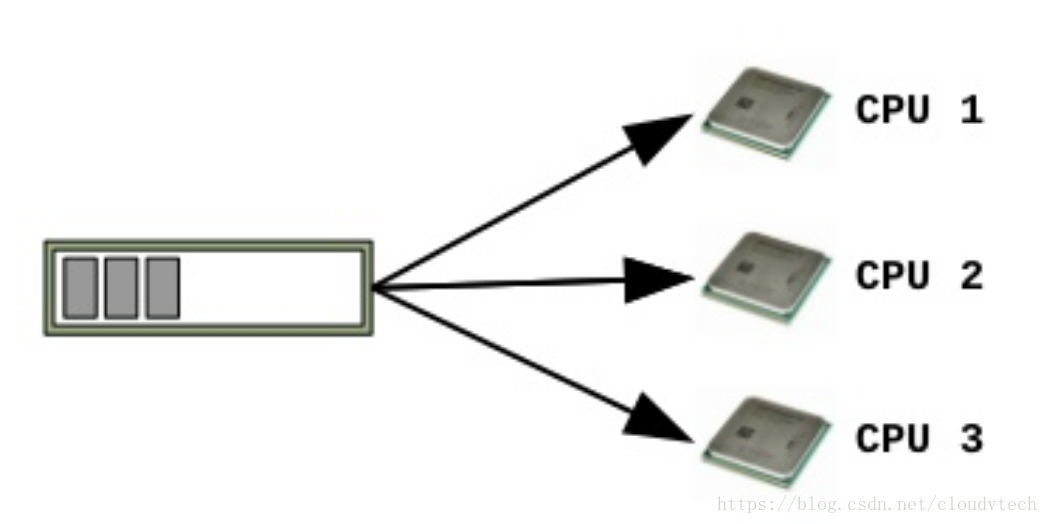
Receive-Side Scaling (RSS), also known as multi-queue receive, distributes network receive processing across several hardware-based receive queues, allowing inbound network traffic to be processed by multiple CPUs. RSS can be used to relieve bottlenecks in receive interrupt processing caused by overloading a single CPU, and to reduce network latency.
To determine whether your network interface card supports RSS, check whether multiple interrupt request queues are associated with the interface in /proc/interrupts. For example, if you are interested in the p1p1 interface: 
# egrep 'CPU|p1p1' /proc/interrupts
      CPU0    CPU1    CPU2    CPU3    CPU4    CPU5
89:   40187       0       0       0       0       0   IR-PCI-MSI-edge   p1p1-0
90:       0     790       0       0       0       0   IR-PCI-MSI-edge   p1p1-1
91:       0       0     959       0       0       0   IR-PCI-MSI-edge   p1p1-2
92:       0       0       0    3310       0       0   IR-PCI-MSI-edge   p1p1-3
93:       0       0       0       0     622       0   IR-PCI-MSI-edge   p1p1-4
94:       0       0       0       0       0    2475   IR-PCI-MSI-edge   p1p1-5
 
The preceding output shows that the NIC driver created 6 receive queues for the p1p1 interface (p1p1-0 through p1p1-5). It also shows how many interrupts were processed by each queue, and which CPU serviced the interrupt. In this case, there are 6 queues because by default, this particular NIC driver creates one queue per CPU, and this system has 6 CPUs. This is a fairly common pattern amongst NIC drivers.
Alternatively, you can check the output of ls -1 /sys/devices/*/*/device_pci_address/msi_irqs after the network driver is loaded. For example, if you are interested in a device with a PCI address of 0000:01:00.0, you can list the interrupt request queues of that device with the following command:
# ls -1 /sys/devices/*/*/0000:01:00.0/msi_irqs
101
102
103
104
105
106
107
108
109
RSS is enabled by default. The number of queues (or the CPUs that should process network activity) for RSS are configured in the appropriate network device driver. For the bnx2x driver, it is configured in num_queues. For the sfc driver, it is configured in the rss_cpus parameter. Regardless, it is typically configured in /sys/class/net/device/queues/rx-queue/, where device is the name of the network device (such as eth1) and rx-queue is the name of the appropriate receive queue.
When configuring RSS, Red Hat recommends limiting the number of queues to one per physical CPU core. Hyper-threads are often represented as separate cores in analysis tools, but configuring queues for all cores including logical cores such as hyper-threads has not proven beneficial to network performance.
When enabled, RSS distributes network processing equally between available CPUs based on the amount of processing each CPU has queued. However, you can use the ethtool --show-rxfh-indir and --set-rxfh-indir parameters to modify how network activity is distributed, and weight certain types of network activity as more important than others.


#Check Driver version
[root@machine1 ~]# ethtool -i eth1
driver: igb
version: 4.2.16
firmware-version: 2.5.5
#CPU Affinity before RSS for eth1 Rx queue:
[root@machine1 ~]$ cat /proc/interrupts | grep eth1-TxRx | awk '{print $1}' | cut -d":" -f 1 | xargs -n 1 -I {} cat /proc/irq/{}/smp_affinity
000100
#List all queues before RSS
[root@machine1 ~]# ls -l /sys/class/net/eth1/queues
total 0
drwxr-xr-x 2 root root 0 Sep 10 18:00 rx-0
drwxr-xr-x 2 root root 0 Oct 10 20:48 tx-0

#Assign number of queues close to CPU cores (http://downloadmirror.intel.com/13663/eng/README.txt
[root@machine1 ~]# echo "options igb RSS=0,0" >>/etc/modprobe.d/igb.conf
#Reload igb driver and restart network
[root@machine1 ~]# /sbin/service network stop; sleep 2; /sbin/rmmod igb; sleep 2; /sbin/modprobe igb; sleep 2; /sbin/service network start;
Shutting down interface eth0:                              [  OK  ]
Shutting down interface eth1:                              [  OK  ]
Shutting down loopback interface:                          [  OK  ]
Bringing up loopback interface:                            [  OK  ]
Bringing up interface eth0: 
Determining IP information for eth0... done.
                                                           [  OK  ]
Bringing up interface eth1:                                [  OK  ]

#List all queues after RSS
[root@machine1 ~]# ls -l /sys/class/net/eth1/queues
total 0
drwxr-xr-x 2 root root 0 Oct 11 00:34 rx-0
drwxr-xr-x 2 root root 0 Oct 11 00:34 rx-1
drwxr-xr-x 2 root root 0 Oct 11 00:34 rx-2
drwxr-xr-x 2 root root 0 Oct 11 00:34 rx-3
drwxr-xr-x 2 root root 0 Oct 11 00:34 tx-0
drwxr-xr-x 2 root root 0 Oct 11 00:34 tx-1
drwxr-xr-x 2 root root 0 Oct 11 00:34 tx-2
drwxr-xr-x 2 root root 0 Oct 11 00:34 tx-3

#CPU Affinity after RSS
[root@machine1 ~]# cat /proc/interrupts | grep eth1-TxRx | awk '{print $1}' | cut -d":" -f 1 | xargs -n 1 -I {} cat /proc/irq/{}/smp_affinity
000400
000008
000002
000001

Receive Packet Steering (RPS)

Receive Packet Steering (RPS) is similar to RSS in that it is used to direct packets to specific CPUs for processing. However, RPS is implemented at the software level, and helps to prevent the hardware queue of a single network interface card from becoming a bottleneck in network traffic.
RPS has several advantages over hardware-based RSS:
  • RPS can be used with any network interface card.
  • It is easy to add software filters to RPS to deal with new protocols.
  • RPS does not increase the hardware interrupt rate of the network device. However, it does introduce inter-processor interrupts.
RPS is configured per network device and receive queue, in the /sys/class/net/device/queues/rx-queue/rps_cpus file, where device is the name of the network device (such as eth0) and rx-queue is the name of the appropriate receive queue (such as rx-0).
The default value of the rps_cpus file is zero. This disables RPS, so the CPU that handles the network interrupt also processes the packet.
To enable RPS, configure the appropriate rps_cpus file with the CPUs that should process packets from the specified network device and receive queue.
The rps_cpus files use comma-delimited CPU bitmaps. Therefore, to allow a CPU to handle interrupts for the receive queue on an interface, set the value of their positions in the bitmap to 1. For example, to handle interrupts with CPUs 0, 1, 2, and 3, set the value of rps_cpus to 00001111 (1+2+4+8), or f (the hexadecimal value for 15).
For network devices with single transmit queues, best performance can be achieved by configuring RPS to use CPUs in the same memory domain. On non-NUMA systems, this means that all available CPUs can be used. If the network interrupt rate is extremely high, excluding the CPU that handles network interrupts may also improve performance.
For network devices with multiple queues, there is typically no benefit to configuring both RPS and RSS, as RSS is configured to map a CPU to each receive queue by default. However, RPS may still be beneficial if there are fewer hardware queues than CPUs, and RPS is configured to use CPUs in the same memory domain. 
Below commands shows how to alter RPS values to distribute load across multiple CPU cores. Optimal settings for the CPU mask depend on architecture, network traffic, current CPU load, etc.
#There are only 2 queues present (1 rx queue and 1 tx queue)
[root@machine1 ~]# ls -l /sys/class/net/eth1/queues/
total 0
drwxr-xr-x 2 root root 0 Oct 14 19:00 rx-0
drwxr-xr-x 2 root root 0 Oct 15 00:15 tx-0
#Packet processing is done by single core CPU1
[root@machine1 ~]# cat /sys/class/net/eth1/queues/rx-0/rps_cpus
0001
#Distribute packet processing load to 15 CPU cores (CPU1-15) except CPU0
[root@machine1 ~]# echo fffe > /sys/class/net/eth1/queues/rx-0/rps_cpus
fffe
#Confirm output
[root@machine1 ~]# cat /sys/class/net/eth1/queues/rx-0/rps_cpus
fffe
Run following command to see output of how softirqs are being distributed across processors for receiving traffic.
[root@machine1 ~]# watch -d "cat /proc/softirqs | grep NET_RX"
 

Packet Flow:

1) Packet arrival at NIC: NIC copies the data to socket buffer through an onboard DMA controller, and raises a hardware interrupt. Some NIC types also have a local memory which is mapped to host memory.

2) Copy data to socket buffer: Linux kernel maintains a pool of socket buffers. The socket buffer is the structure used to address and manage a packet over the entire time this packet is being processed in the kernel. When NIC recieves data, it creates a socket buffer structure and stores the payload data address in the variables of this structure. At each layer of TCP/ IP stack, headers are appended to this payload. The payload is copied only twice: once when it transits from the user address space to the kernel address space, and a second time when the packet data is passed to the network adapter.

3)Hardware interrupt & softIRQ: After copying data to socket buffer, NIC raises a hardware interrupt to indicate that an action needs to be taken by CPU on incoming packet. The processor's interrupt service routine then reads the Interrupt Status Register to determine what type of interrupt occurred and what action needs to be taken. It acknowledges the NIC interrupt. A hardware interrupt should be quick so the system isn't held up in interrupt handling. With the kernel now aware that a packet is available for processing on the receive queue the hardware interrupt is done, the hardware signal is un-asserted, and everything is ready for the next stage of packet processing. The next stage of packet processing is put in CPU's backlog queue as softIRQ so whenever it get chance, it will start processing and move the packet upto TCP/ IP stack.In case of monoqueues, the hardware interrupt generated is from single queue and same CPU is also responisble for processing softIRQ. If RPS is enabled on mono queue, the incoming packets are hashed, load is distributed across multiple CPU processors.In case of multi queues (RSS), hardware interrupt will go to matching CPU processor, and that processor will also be responsible for softIRQ processing.

Bibliography:

https://www.kernel.org/doc/Documentation/networking/scaling.txt


Sunday, 5 February 2017

What is channel width? How to setup/understand 20MHz or 40MHz?

What WLAN Channels are available?

There are 14 channels designated for wireless networks in the 2.4-GHz frequency band and 42 channels in the 5-GHz frequency band.

The 14 channels in the 2.4-GHz band are spaced 5 MHz apart. The protocol requires 25 MHz of channel separation, meaning that it is possible for adjacent channels to overlap and then interfere with each other. For this reason, only channels 1, 6, 11 are typically used in the US to avoid interference. In the rest of the world, the four channels 1, 5, 9, 13 are typically recommended. The 2.4-GHz frequency band is heavily used because most devices can operate on that band.

The 5-GHz band is actually four frequency bands: 5.1 GHz, 5.3 GHz, 5.4 GHz, and 5.8 GHz. The 5-GHz band has a total of 24 channels with 20- MHz bandwidth available. Unlike the 2.4-GHz band, the channels are non-overlapping, therefore all channels have the potential to be used in a single wireless system. Because only 802.11a devices formerly used this band (occasionally 802.11n uses it also) this band is less crowded and targeted for increased use for new 802.11 technologies under development.

What Channels are not available?

Because each country has different regulatory requirements, the country code determines which channels you can configure on the radios. When you specify the country of operation for an access point, the radios are restricted to using the valid channels for that country.

The FCC (United States) requires that devices operating the 5-GHz band must employ dynamic frequency selection (DFS) and transmit power control (TPC) capabilities. This is to avoid interference with weather-radar and military applications. Additional channels in the 5-GHz band are restricted to avoid interference with Terminal Doppler Weather Radar (TDWR) systems. This eliminates the use of channels 120, 124, and 128. Channels 116 and 132 can be used if they are separated by more than 30 MHz (center-to-center) from a TDWR located within 35 km of the device.

Table 1: Channels a Device Can Use
Device Capability
Band and Channel Width used:
Typical Channel Use
802.11b
2.4-GHz band, 20-MHz channel width
1, 6, 11 (US) or 1, 5, 9, 13
802.11g
2.4-GHz band, 20-MHz channel width
1, 6, 11 (US) or 1, 5, 9, 13
802.11n
2.4-GHz band, 20-MHz channel width
5-GHz band, 40-MHz channel width
1, 6, 11 (US) or 1, 5, 9, 13
(36,1) (40,-1) (44,1) (48,-1) (52, 1) (56,-1) (60,1) (64,-1) (100,1) (104,-1) (108,1) (112,-1) (116,1) (120,-1) (124,1) (128,-1) (132,1) (136,1) (149,1) (153,-1) (157,1) (161,-1)
802.11a
5-GHz band, 40-MHz channel width
3, 11

802.11n Channels Can Be Wider and Work on Both Bands

802.11n devices work on the 5-GHz radio band as well as the more-populated 2.4-GHz radio band. On the 5-GHz band, 802.11n channels can be either 40 MHz or 20 MHz wide as shown in Table 1. This is one reason that 802.11n devices can be faster.

Note: 40 MHz channels work only with 802.11n on the 5-GHz band—40 MHz channels cannot not be configured on a 2.4-GHz radio.

802.11n radios configured for the 5-GHz band have a primary channel and a secondary channel. The primary channel is listed using the channel number, and the secondary channel adds another 20 MHz to make the channel 40 MHz. Therefore, the secondary channel is either the channel above (1) or the channel below (-1) the primary channel. This notation keeps you from configuring non-contiguous channels. For example, if the primary channel is 36 and the secondary channel is 40, the combination would be (36,1). If the primary channel is 44 and the secondary channel is 40, the notation would be (44,-1).

The following channels, listed as (primary channel, secondary channel) are supported for 802.11n at 5 GHz with 40 MHz bandwidth: (36,1) (40,-1) (44,1) (48,-1) (52, 1) (56,-1) (60,1) (64,-1) (100,1) (104,-1) (108,1) (112,-1) (116,1) (120,-1) (124,1) (128,-1) (132,1) (136,1) (149,1) (153,-1) (157,1) (161,-1)

What is WiFi Channel width?

Channel width basically controls how broad the signal is for transferring data. Think of it like a highway. The wider the road, the more traffic (data) can pass through. On the other hand, the more cars (routers) you have on the road, the more congested the traffic becomes.
By increasing the channel width, we can increase the speed and throughput of a wireless broadcast. By default, the 2.4 GHz frequency uses a 20 MHz channel width. A 20MHz channel width is wide enough to span one channel. A 40 MHz channel width bonds two 20 MHz channels together, forming a 40 MHz channel width; therefore, it allows for greater speed and faster transfer rates.
Obviously, two channels are better than one, right? In theory, yes. But not if those channels are crowded with noise and interference. In crowded areas with a lot of frequency noise and interference, a single 20MHz channel will be more stable. 40MHz channel width allows for greater speed and faster transfer rates but it doesn’t perform as well in crowded areas.
However, noise and interference is not always the issue. Sometimes it’s the distance. If greater distance is the primary objective, my preference is the 2.4GHz band.

Case Study:

 802.11a/b/g 

Previous 802.11b/g and 802.11a radios used a transmission channel that was 22 MHz wide. Conventionally, these were referred to as "20 MHz Channels." When the quality of a channel (based on signal-to-noise ratio and interference) was excellent and the received signal strength was high enough a connection rate of 54 Mbps could be achieved. With 802.11a/b/g technology roughly half of the connection rate was available for TCP/IP data transmission. Hence, a maximum throughput of roughly 27 Mbps was possible (although the practical maximum is seen to be closer to 22 Mbps because of typical environmental factors).

The 2.4 GHz 802.11b/g Channel Space

Shown below is a frequency map of the 2.4 GHz ISM (Industrial, Scientific and Medical) band used by 802.11b/g equipment and available for use by 802.11n equipment. There are 14 channels defined (spaced 5 MHz apart) and channels 1 through 11 are available for use in North America. The end result of this arrangement is that a maximum of three channels can be configured for use (channels 1, 6 and 11) without overlapping between adjacent channels. All best-practices 802.11b/g design use only these three channels. As you study the channel layout you should also note that a 40 MHz 802.11n channel would be comprised of eight 802.11b/g channels. Remember that these channels overlap. Their center frequencies are 5 MHz apart but each channel is 22 MHz wide. To get a contiguous 40 MHz wide channel requires that the frequencys allocated to 8 separate channels be sacrificed.

The Capacity of 802.11n 40 MHz Channels

802.11n allows the configuration of 40 MHz wide channels. Because adjacent channels need a slight gap between them (to separate them in the frequency band) a single 40 MHz channel has slightly more than twice the bandwidth of two adjacent 20 MHz channels (because the inter-channel frequency gap is now part of the actual channel space). Hence, a 40 MHz 802.11n channel provides just a little better than twice the throughput capacity of a single 20 MHz 802.11n channel. If an 802.11n transmitter is operating in a 20 MHz channel and can establish a 72.2 Mbps connection then a 40 MHz channel would provide for a 150 Mbps connection. When you double the channel width you double (plus about 4%) the capacity of the resultant double-wide 802.11n channel.

A Fundamental Challenge to the Use of 40 MHz Channels

When a wireless LAN uses 802.11n exclusively it's referred to as an "802.11n Greenfield Mode" implementation. Most wireless LANs will be required to provide support for 802.11b/g clients in the 2.4 GHz ISM band. Some wireless LANS will be required to support 802.11a clients (or 802.11a backhaul point-to-point connectivity) in the 5.8 GHz ISM band. 802.11a/b/g operates using conventional 20 MHz channels. If a device were to transmit in a 20 MHz channel which was half of a double-wide, bonded 40 Mhz channel there would be a problem. In mixed-mode networks (802.11n in the presence of 802.11b/g or 802.11a) the only 40 MHz channels that can be successfully used are those where both of the 20 MHz channels are free of legacy 802.11b/g or 802.11a transmitters. This prerequisite can typically be met without a problem in the 5.8 GHz ISM band (where there are upwards of 12 20 MHz channels to choose from) but is almost impossible to meet in the 2.4 GHz band (where 802.11b/g clients are common). A notable exception to this is the case where a homeowner sets up a residential Wi-Fi network using 802.11n in the 2.4GHz ISM band with a 40 MHz channel setting. There may not be any nearby 802.11b/g devices to cause interference or, at least, to cause only minimal interference.

The Use of 40 MHz Channels in the 2.4GHz Band is Not Reasonable for Commercial Networks

The 2.4 GHz band is often heavily congested, particularly in dormitories, apartments and condominiums, and multi-story office buildings. This alone precludes effective use of 40 Mhz channels. A home user, or a commercial user requiring only a single access point may obtain improved throughput (relative to 802.11g) using a single 40 MHz channel. Interior space larger than 3000 square feet will probably need more than one 802.11n access point to provide maximum bit-rate connectivity to 100% of the area. When adding a second access point to an 802.11n network is considered in the 2.4 GHz band the problem with 2.4GHz 40 MHz channels becomes evident.


Only One 40 Mhz 802.11n Channel Is Available in the 2.4 GHz ISM Band

The 5.8 GHz Channel Space


802.11n 40 MHz Channels As They Relate to Dynamic Frequency Selection (DFS) and Radar Avoidance

Military radar and some weather radar can operate in the U-NII-2 band. To avoid conflict between unlicensed transmitters (like Wi-Fi access points) operating in the U-NII-2 band the FCC requires [Rule #15.407(h)(2)] that all unlicensed transmitters operating in U-NII-2 implement Dynamic Frequency Selection (DFS). DFS allows the radio to detect the presence of radar signals and to dynamically and automatically change to a different transmit frequency if radar is discovered. Because this requirement demands that a manufacturer of a Wi-Fi access point implement additional, specialized detection mechanisms some manufacturers have simply decided to not provide support for U-NII-2 operation. While almost all major manufacturers do support U-NII-2 it's important to check for U-NII-2 capability when selecting a particular brand of equipment.

Notice that without U-NII-2 support there are only four available channels for indoor use and four for outdoor use. That's a non-issue when 20 MHz channels are being used (i.e. for 802.11a). In mathematics, the "Four Color Theorem" states that if a plane (a floorplan or area map, for example) is divided into contiguous regions (analogous to access point coverage cell areas) then the regions can be colored using at most four colors so that no two adjacent regions have the same color. If we substitute "channel" for "color" then the Four Color Theorem tells us that if you have four channels to work with then a design can be created that avoids detrimental channel overlap (where two or more access points cover an area with the same channel resulting in system degradation).

When considering 40 MHz channels it can be seen that use of the U-NII-2 band is critical. You can't get four (or even three) 40 MHz channels for either indoor or outdoor use unless you take channel space out of the U-NII-2 band. The channel map shown below indicates how

Conclusion

What is wireless spectrum and frequency band and Understanding of channel selection?

What is a Wireless Spectrum?

Most wireless products use the following Wi-Fi spectrums: 802.11a, 802.11b, 802.11g, 802.11n, 802.11ac. These Wi-Fi spectra are established by The Institute of Electrical and Electronics Engineers, a non-profit organization also known as the IEEE. This is why you’ll often see “IEEE 801.11a/b/g/n” on retail boxes for wireless devices, routers, etc.
 
Wireless spectrum for 801.11 a/b/g/n/ac WiFi networks 

What is a WiFi frequency band?


There are basically two frequency bands used for Wi-Fi technology, 2.4GHz and 5GHz. 2.4GHz has been around longer. It’s also an unregulated frequency. As a result, vendors can manufacture 2.4GHz devices less expensively than regulated spectrum like the 5GHz band. The downside to this “unregulated” band is that manufacturers use it for everything: cordless phones, baby monitors, microwaves, garage door openers, etc. 5GHz is a regulated frequency which costs manufacturers more to produce.
The 2.4GHz band offers better range. It handles obstacles better than 5.0GHz. However, 5GHz offers much faster throughput for maximum performance. It just doesn’t handle obstructions and channel noise quite as well. However, keep in mind that because there are more 2.4GHz wireless networks, the frequency channels can become crowded in some areas.
Interference and obstructions greatly affect the range and quality of a wireless signal. Interference often comes from noise created by other wireless routers, cordless phones, baby monitors, etc. Obstructions are physical obstacles like walls and trees or large metal objects such as a refrigerator.
Remember this when troubleshooting because it may not be just one thing causing problems. It could be that there are too many devices using the same frequency. It could also be multiple obstacles, inadequate antenna gain, or a little of everything.

The idea is to decrease the WiFi frequency interference.


Choosing 2.4 ghz vs 5 ghz Wifi

In short, you should choose 5 ghz for your 802.11 Band for simple reasons. It operates at much faster speed with the latest technology.

2.4 ghz vs 5 ghz Wireless Interference

5 ghz has less signal interference.
The idea is that more devices in your house operate at 2.4 ghz. The wifi networks owned by your neighbors have a higher probability of running on 2.4 ghz so that the wifi signals can interfere with one another. The reasons can be that neighbors still have 2.4 ghz devices that they need to support.
If you choose to use 5 ghz over 2.4 ghz , because of the shorter range on the 5 ghz wifi, your 5 ghz network has less chances of interfering with neighbor’s 5 ghz.

2.4 ghz vs 5 ghz Data Throughput

5 ghz offers faster speed since more data can be transferred via the 5 ghz band. This means you should always pick 5 ghz if your device is close to the router that you are hosting the network with.

2.4 ghz vs 5ghz Support comparison.

2.4 ghz supports more devices (backward compatible).

5 ghz is a more recent technology whereas the older devices only support 2.4 ghz. So if you are still using older devices, your real only option is to let your network support 2.4 ghz. Unless you want to bridge devices using other routers. But then again when you have mixes of 2.4 ghz and 5 ghz, you are likely to bring down the overall performance of the network.


Wifi Frequency channels for 2.4Ghz and 5GHz wireless networks

Tuesday, 31 January 2017

what are different wireless operating modes? how it is different from wireless modes?

A wireless interface always operates in one of the following operating modes. The mode sets the main functionality of the wireless link.

AccessPoint (AP) infrastructure mode


An Access Point acts as the Master device in a managed wireless network. It holds the network together by managing and maintaining lists of associated Stations. It also manages security policies. The network is named after the MAC-Address (BSSID) of the AP. The human readable name for the network, the SSID, is also set by the AP.

/!\ To use AP mode in Linux you need to use hostapd, at least a current 0.6 release, preferably from git. /!\ Cf. http://wireless.erley.org
Station infrastructure mode:

The Station device connects to an access point by sending certain management packets to it. This process is called the authentication and association. After the AP sent the successful association reply, the station is part of the network.

This mode is also called managed in the wireless extension tools (

    iwconfig

Monitor mode:

Monitor mode is a passive-only mode, no packets are transmitted. All incoming packets are handed over to the host computer completely unfiltered. This mode is useful to see what's going on on the network.

With mac80211, it is possible to have a network device in monitor mode in addition to a regular device, this is useful to observe the network whilst using it. However, not all hardware fully supports this as not all hardware can be configured to show all packets while in one of the other operating modes, monitor mode interfaces always work on a “best effort” basis.

With mac80211, it's also possible to transmit packets in monitor mode, which is known as packet injection. This is useful for applications that wish to implement MLME work in userspace, for example to support nonstandard MAC extensions of IEEE 802.11.

Ad-Hoc (IBSS) mode

The Ad-Hoc mode is used to create a wireless network without the need of having a Master Access Point in the network. Each station in an IBSS network is managing the network itself. Ad-Hoc is useful for connecting two or more computers to each other when no (useful) AP is around for this purpose.
Wireless Distribution System (WDS)

The Distribution System is the wired uplink connection to an AP. The Wireless Distribution System is the wireless equivalent to it. WDS serves as a wireless communication path between cooperating APs (usually in a single ESS), it can be used instead of cabling. Read iw WDS documentation for details on how to enable this, but also review and consider using 4-address mode.
Mesh

Mesh interfaces are used to allow multiple devices to communication with each other by establishing intelligent routes between each other dynamically.

Please see Wikipedia's entry on 802.11s. and Wireless mesh network(WMN).

In order to achieve mesh portal functionality, you can bridge a mesh interface with a regular ethernet interface.

Wireless Modes and Channels

WatchGuard AP wireless devices support two different wireless bands: 2.4 GHz and 5 GHz. The band you select and the country you specify determine which wireless modes are available.

These wireless standards are supported:

                                      80211n                             80211g                       80211b                   80211a

Freq band:                  2.4GHz and 5GHz              2.4GHz                       2.4GHz                    5GHz

Data rate  :                  600Mbps                            54Mbps                     11Mbps                   54Mbps

Channel Width:          20MHz and 40MHz             20MHz                       20Mhz                     20MHz

Indoor Range:            230ft                                    125ft                           115ft                        115ft


The 802.11n protocol is the latest wireless standard, and provides high data rates and performance in the 5 GHz frequency band. It is only supported in the most recent types of wireless devices.

For maximum performance, select only the 802.11n standard in the 5 GHz band. This selection requires that all the wireless devices on your network support the 802.11n standard. For most environments, you must support legacy wireless devices that do not support 802.11n. Because of this, WatchGuard recommends that you configure your WatchGuard AP device to use the default mixed mode 802.11b/g/n.

Wireless Channels

A wireless channel is a specific division of frequencies within a specific wireless band. For example, in the 2.4GHz band with a channel width of 20MHz, there are 14 defined channels spaced every 5MHz. Channels 12 and 13 are available in countries outside of North America. Channel 14 is for Japan only and is spaced at 12 MHz.

One wireless channel can overlap the frequency of another wireless channel. When you design and deploy wireless networks, you must consider which channels you use for your wireless network. For example, in the 2.4 GHz band, adjacent channels such as channel 3 and 4 have frequencies that closely overlap, which can cause interference. In the 2.4 GHz band, channels 1, 6, and 11 are the most commonly used channels. They do not overlap each other because of the space between their frequencies. The 2.4GHz band is crowded because many other devices that operate on this band (such as cordless phones, microwaves, monitors, and wireless headsets) also use the same channels, and can cause wireless congestion.

In the 5GHz band, the full channel width is reserved and there is a very large selection of channels that do not overlap. 802.11n also enables you to combine two 20MHz channels to form a 40MHz channel for increased bandwidth.

In some regions, DFS (Dynamic Frequency Selection) channels operate in the 5GHz band. Because DFS channels are used with radar, transmissions from your AP device stop if radar signals are detected on that channel. Use can disable the use of DFS channels in your AP device configuration.

For outdoor model AP102, you can configure the device to only use outdoor channels.

Channel Selection

The WatchGuard AP device is configured by default to automatically select a wireless channel. When you power on the WatchGuard AP device, it automatically scans the network and selects the wireless channel with the least amount of interference.

The default channel width is configured as 20/40MHz. This mixed mode sets the radio to use 40MHz channel width, but it also has additional transmission information, which enables it to be used in an environment that includes 802.11a/b/g wireless access points.